

AI Builder has ready-made models that let you make apps and flows smarter without needing to create your own from scratch. For instance, in Power Apps, there’s a ready-to-use model that can read business cards for you. In Power Automate, there’s one that tells if customer comments are good or bad.
In this one, we’ll explore how to use AI Builder to enhance the intelligence of Power Automate flows. AI Builder comes with a Built-in connection called “AI Builder” that you’ll find looks like what we’re seeing below.
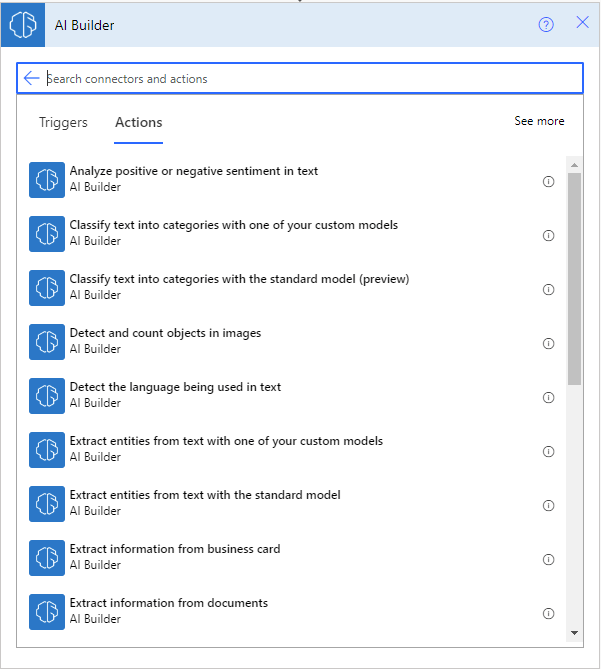
In my previous post titled “Exploring the AI Builder“, I showcased all the ready-made tools available under the connector. Each of these tools has its own set of requirements. Provide the necessary parameters, and you’ll receive the results in JSON format.
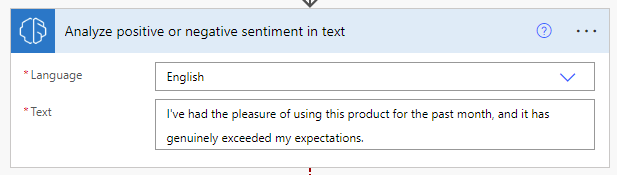
For e.g. using the “Analyse positive or negative sentiment in text” action to determine the sentiment of a text phrase or sentence. You would need to select the language and provide the text for analysis.
[
  {
    "@odata.type": "#Microsoft.Dynamics.CRM.expando",
    "sentiment": "positive",
    "offset": 0,
    "length": 110,
    "sentenceScores": {
      "@odata.type": "#Microsoft.Dynamics.CRM.expando",
      "positive": 0.98,
      "neutral": 0.01,
      "negative": 0.01
    }
  }
]
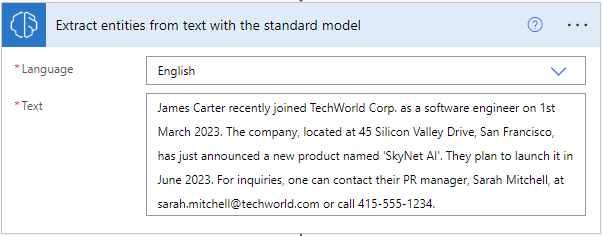
One of the features I really like is the ability to extract information from unformatted text. It helps to identify contact details or other important information from things like emails, notes, or summaries. This can be really useful in various situations where we need to extract specific details quickly and easily.
[
  {
    "@odata.type": "#Microsoft.Dynamics.CRM.expando",
    "type": "PersonName",
    "startIndex": 0,
    "length": 12,
    "value": "James Carter",
    "score": 0.9952890580310519
  },
  {
    "@odata.type": "#Microsoft.Dynamics.CRM.expando",
    "type": "DateTime",
    "startIndex": 13,
    "length": 8,
    "value": "recently",
    "score": 0.8
  },
  {
    "@odata.type": "#Microsoft.Dynamics.CRM.expando",
    "type": "Organization",
    "startIndex": 29,
    "length": 15,
    "value": "TechWorld Corp.",
    "score": 0.999465502624096
  },
  {
    "@odata.type": "#Microsoft.Dynamics.CRM.expando",
    "type": "DateTime",
    "startIndex": 71,
    "length": 14,
    "value": "1st march 2023",
    "score": 0.8
  },
  {
    "@odata.type": "#Microsoft.Dynamics.CRM.expando",
    "type": "Number",
    "startIndex": 111,
    "length": 2,
    "value": "45",
    "score": 0.8
  },
  {
    "@odata.type": "#Microsoft.Dynamics.CRM.expando",
    "type": "City",
    "startIndex": 114,
    "length": 14,
    "value": "Silicon Valley",
    "score": 0.9
  },
  {
    "@odata.type": "#Microsoft.Dynamics.CRM.expando",
    "type": "City",
    "startIndex": 136,
    "length": 13,
    "value": "San Francisco",
    "score": 0.9
  },
  {
    "@odata.type": "#Microsoft.Dynamics.CRM.expando",
    "type": "Organization",
    "startIndex": 191,
    "length": 9,
    "value": "SkyNet AI",
    "score": 0.7964247561839986
  },
  {
    "@odata.type": "#Microsoft.Dynamics.CRM.expando",
    "type": "DateTime",
    "startIndex": 229,
    "length": 9,
    "value": "june 2023",
    "score": 0.8
  },
  {
    "@odata.type": "#Microsoft.Dynamics.CRM.expando",
    "type": "PersonName",
    "startIndex": 289,
    "length": 14,
    "value": "Sarah Mitchell",
    "score": 0.9953611843416538
  },
  {
    "@odata.type": "#Microsoft.Dynamics.CRM.expando",
    "type": "Email",
    "startIndex": 308,
    "length": 28,
    "value": "sarah.mitchell@techworld.com",
    "score": 0.8
  },
  {
    "@odata.type": "#Microsoft.Dynamics.CRM.expando",
    "type": "PhoneNumber",
    "startIndex": 345,
    "length": 12,
    "value": "415-555-1234",
    "score": 0.8
  }
]
The output will show you a score, length and much more for each extraction. This helps you know how accurate the metadata extraction is. You can use a JSON parser or your own methods to get the JSON data and proceed.
 My Trial