

In today’s fast-paced digital environment, having efficient email template editing tools is vital. Now, you can elevate the email template editing experience across your organization’s applications.
How to Enable the Enhanced Email Template Editor:
- Select Your Environment: In Power Apps, choose the environment housing your solution.
- Access Solutions: Navigate to ‘Solutions‘ on the left panel, then select your desired solution. Avoid using the default solution for this configuration.
- Add New Settings: Go to ‘Add Existing’ > ‘More’ > ‘Setting’. Choose ‘Enable the New Email Template Editor’ and proceed to ‘Next’.
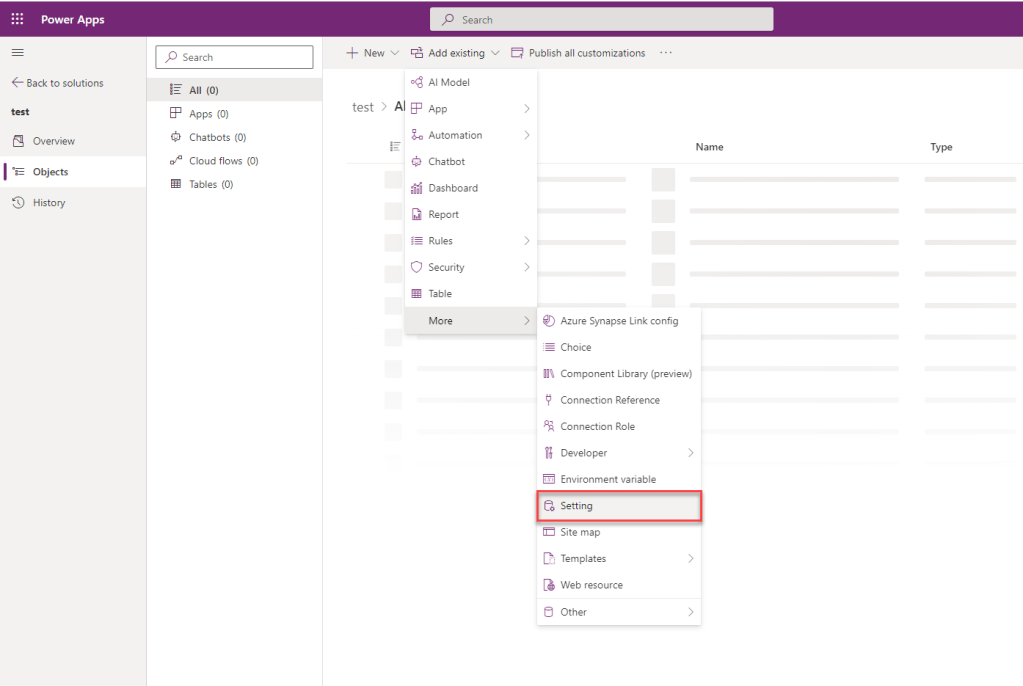
- Incorporate the Setting: Click on ‘Add’ to include ‘Enable the New Email Template Editor’ in your solution.
- Configure Model-Driven Apps: Navigate to ‘Add Existing’ > ‘App’ > ‘Model-driven app’. Choose the ‘Enable the New Email Template Editor’ option.
- Activate the Feature: In the ‘Edit Enable the New Email Template Editor’ pane, set the ‘Setting environment value’ option to ‘Yes’.
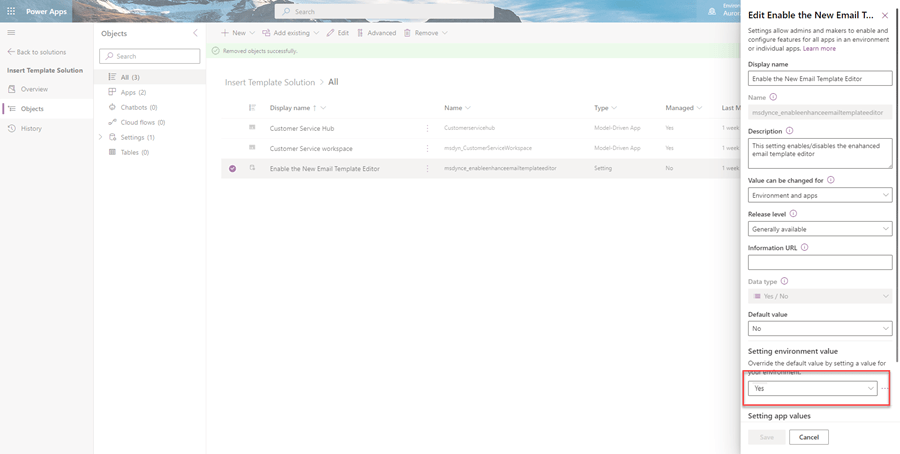
- Finalize the Setup: Click on ‘Publish All Customizations’ to complete the process.
Point to note, once you activate this feature, make sure to test it with a new template. This new designer will not be available for the existing templates.
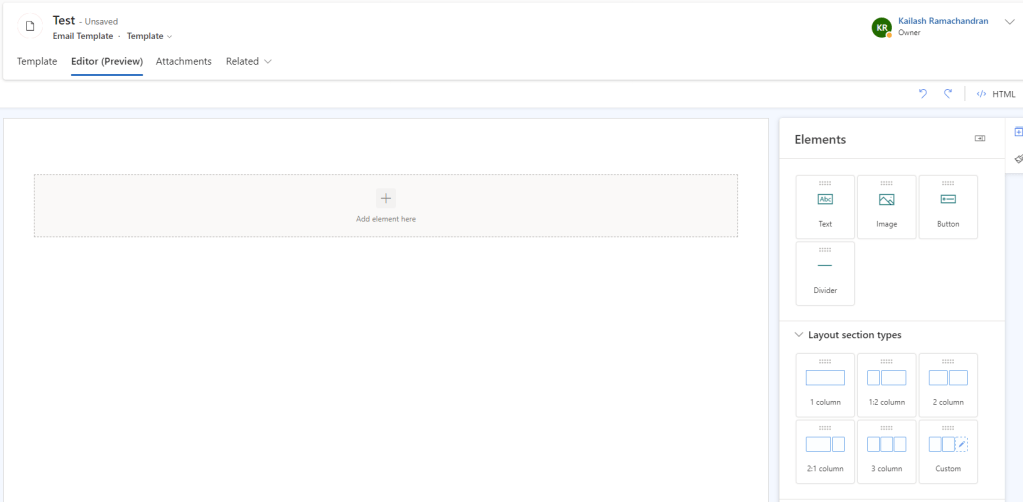
 My Trial