

Max: Hey Zoe, I’m setting up data retention policies in Dataverse and need to view the retained data. Can you guide me through the critical steps and important limitations?
Zoe: Sure, Max. First, let’s talk about viewing retained data. You can do this using an advanced find query or by creating a Power Automate flow. But remember, to view retained data, you need the system administrator role or a security role with organization scope read privileges.
Max: Got it. How do I grant access to someone, like an auditor, to view retained data?
Zoe: If an auditor needs access, you can create a new security role, for example, “LTRAccounts Access Role”, and grant organization scope read privileges to the accounts table. Then, add the auditor to this role. Once the audit is complete, it’s best practice to remove the auditor from the role.

Max: That sounds straightforward. What about viewing retained data using edit filters in a model-driven app?
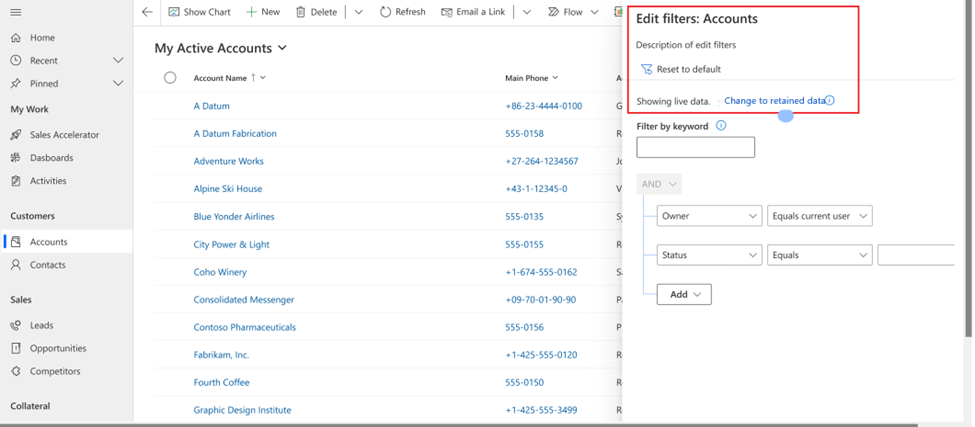
Zoe: You can sign into Power Apps, play an app that includes a table with retained data, and open the view you want. From there, select Edit filters and then Change to retained data. Select the tables and search filters you want, and apply them. The retained data will display in a read-only grid. However, you can’t save or export these view query results. To share retained data, you need to create a cloud flow.
Max: Speaking of cloud flows, how do I view retained data using a flow?
Zoe: You can create a Power Automate cloud flow to generate an Excel file from a FetchXML query of the retained data and send it as an email attachment. Keep in mind, if the data includes attachments from the annotation table, they will be returned as base64 representations, which might cause time-outs for large files. You can work around this by using the Web API to perform the export action with Azure Functions or custom development options.
Max: Are there any limitations I should be aware of when retrieving retained data?
Zoe: Yes, there are several:
- Only up to five users can query and retrieve retained data simultaneously.
- Each environment allows up to 100 queries per day.
- Queries are limited to one table at a time; joins and aggregation functions aren’t allowed.
- For complex queries, consider using Microsoft Fabric and Power BI options.
Max: Can you explain how Microsoft Fabric fits into this?
Zoe: Sure. By linking your Dataverse environment to Microsoft Fabric, you can view both active and inactive data without the usual limitations. You can explore the data with SQL queries and create Power BI reports. This gives you more flexibility in data analysis.
Max: That sounds powerful. Are there any known issues I should be aware of?
Zoe: Yes, there are a few. For instance, saving the query results of retained data as a personal view isn’t supported. While users can save the query, the view won’t return results. So, it’s important to use the correct methods for viewing and sharing retained data.
Max: Thanks, Zoe! This really helps clarify how to set up and manage data retention policies in Dataverse.
Zoe: Anytime, Max! Just remember to follow the best practices and keep an eye on the limitations to ensure smooth data management.
 My Trial