

Max: Hey Zoe, have you checked out the Security page in the Power Platform admin center lately? I’ve been diving into it, and it’s packed with features to help manage security across our organization.
Zoe: Yeah, I took a quick look. It seems like a great way to centralize our security efforts. But I’m curious—how exactly does it help us assess and improve our security?
Max: Well, it’s designed to give us a comprehensive view of our security status. The page helps us understand where we stand and offers specific recommendations to tighten security further. It’s all about taking proactive steps to safeguard our environment.
Zoe: Interesting. So, how does it assess our security status? Is it just based on whether certain features are turned on or off?
Max: Sort of, but it’s more nuanced than that. The security assessment is categorized into three levels: Standard, Enhanced, and Advanced. This assessment is calculated based on system recommendations, user activities, and the security configurations we’ve applied.
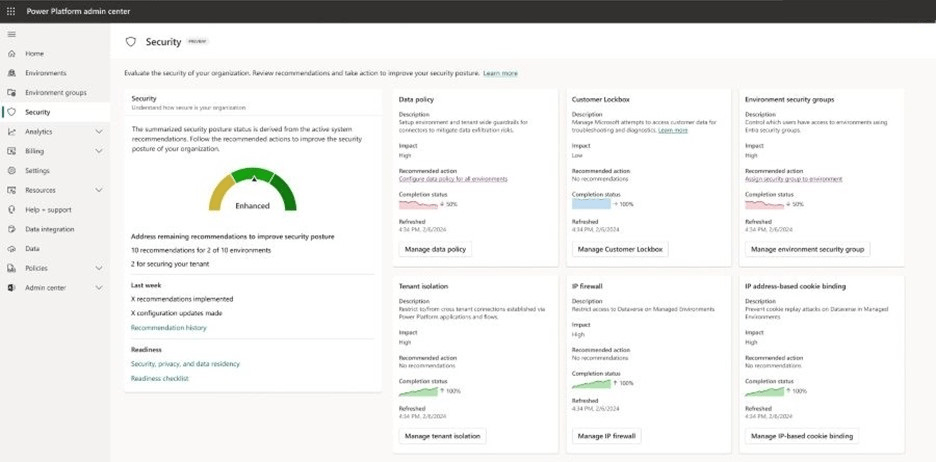
Zoe: So, the more features we enable and the more secure our configurations, the better our assessment?
Max: Exactly. The assessment is calculated using a simple formula: Total achieved impact divided by the Total possible impact. Each feature is assigned an impact status based on how it’s configured across the tenant or specific environments.
Zoe: Can you break that down with an example?
Max: Sure! Let’s say we have a tenant with 10 environments. The features like IP firewall, IP cookie bindings, and environment security groups each add to our impact score. For instance, if Tenant isolation is used across all environments, that adds a total impact of 10.
Zoe: And what happens if some features, like the Customer Lockbox, aren’t turned on?
Max: Good question. If the Customer Lockbox isn’t enabled and we don’t have any Managed Environments, it doesn’t contribute to our impact score. So, the total impact we can achieve is based on what’s actually being used.
Zoe: Got it. So, what about those recommendations you mentioned earlier? How do they fit into this?
Max: The recommendations are all about reactive governance. The system generates suggestions based on best practices, like enabling an IP firewall or configuring tenant isolation. If we act on these, we can directly improve our security assessment.
Zoe: Sounds like a great way to stay on top of things. But what if I want to go beyond the recommendations and manage specific features?
Max: That’s where the Manage button comes in handy. It lets you configure features even if they’re not currently recommended. It’s all about giving you control over your security setup.
Zoe: This sounds incredibly useful, especially for admins who need to ensure everything is secure but might not know where to start.
Max: Absolutely. The Security page really streamlines the process. You can start by enabling tenant-level analytics to populate the page with data. It might take up to 48 hours, but once that’s done, you’ll have a clear picture of your security posture.
Zoe: And what if we don’t enable tenant-level analytics? Do we miss out on these insights?
Max: Unfortunately, yes. Without tenant-level analytics, the Security page won’t display any data. So, it’s crucial to turn that on if we want to take full advantage of these features.
Zoe: Good to know. This definitely seems like a must-use feature for anyone managing a Power Platform environment. Thanks for breaking it down, Max!
Max: Anytime, Zoe! It’s all about making sure our environments are as secure as possible.
 My Trial