

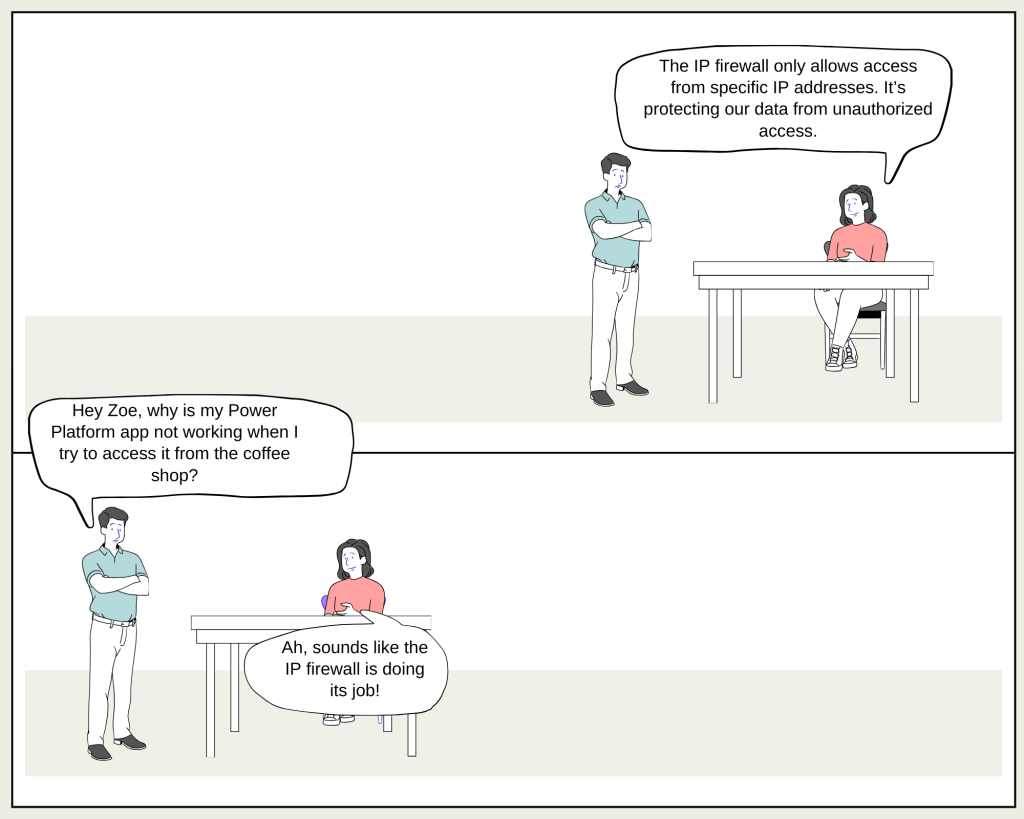
Max: “So, Zoe, I was at the coffee shop this morning, trying to get some work done, but I couldn’t access our Power Platform environment. What’s going on?”
Zoe: “Ah, that’s the IP firewall in action! It’s a security feature that helps protect our organizational data by limiting access to Microsoft Dataverse from only allowed IP addresses. Since you were at a coffee shop and not at one of our approved office locations, the firewall blocked your access.”
Max: “Wow, that’s pretty strict! But I guess it’s necessary for security. Can you explain how it actually works?”
Zoe: “Sure thing. When the IP firewall is enabled, it checks the IP address of every request made to Dataverse in real time. If the IP address is in the list of allowed ranges, the request is processed as usual. If not, the request is denied, and you get an error message saying your IP is blocked.”
Max: “Got it. So, it’s like a gatekeeper that only lets trusted people in. But what are the benefits of using this IP firewall?”
Zoe: “Exactly, Max! The IP firewall mitigates insider threats, like someone trying to exfiltrate data from Dataverse using tools like Excel or Power BI from an unauthorized location. It also helps prevent token replay attacks, where someone might steal an access token and try to use it from outside the allowed IP range. The firewall blocks these attempts in real-time.”
Max: “That sounds like a great way to secure our environment. But how do I enable this feature?”
Zoe: “You can enable the IP firewall through the Power Platform admin center. It’s pretty straightforward. Just go to the environment settings, find the IP address settings, and switch on the IP firewall. You’ll also need to specify the allowed IP ranges in CIDR format. If you have multiple ranges, just separate them with a comma.”
Max: “What if I want to test this out first? I don’t want to accidentally lock everyone out!”
Zoe: “Good thinking, Max! There’s an ‘Audit-only mode’ that you can enable first. This mode lets you see which IP addresses are making requests to your environment without actually blocking any of them. It’s a great way to test your setup before fully enforcing the firewall.”
Max: “I like that. One last question—what happens if I need to allow certain Microsoft services or application users access, even if they’re outside the IP range?”
Zoe: “You can configure service tags and allow access for trusted services and all application users. These settings give you the flexibility to ensure critical services like Power Automate flows continue to work, even with the firewall in place.”
Max: “Thanks, Zoe! This IP firewall sounds like a powerful tool for securing our environment. I’m going to set it up and test it in audit-only mode first.”
Zoe: “Good plan, Max. And remember, always test in a non-production environment first. You’ll be protecting our data like a pro in no time!”

 My Trial