

Model-driven apps often contain dozens of columns spread across multiple tabs and sections. Finding key insights quickly can be a challenge. Row Summaries in Copilot-powered model-driven apps provide a collapsible summary bar that surfaces essential information at a glance.
📢 What’s New?
- Customize the row summary using AI-generated insights.
- Summarize key details with formatted prompts.
- Add hyperlinks to related records for seamless navigation.
- Copy and share summaries effortlessly in Microsoft Teams or other collaboration tools.

🚀 Let’s explore how you can configure Row Summaries to optimize user experience in Power Apps!
🔑 Prerequisites
Before enabling Row Summaries, ensure the following:
✅ A Power Platform administrator has enabled AI insight cards in environment settings. (More info: Manage feature settings)
✅ The feature is available only in preview and isn’t intended for production use yet.
📌 How to Create a Row Summary
You can configure row summaries for main forms of a table.
1️⃣ Sign in to Power Apps → Select Tables from the left navigation pane.
2️⃣ Open the table where you want to configure a row summary. (If it’s not visible, select …More to find it.)
3️⃣ Under Customizations, select Row Summary.
4️⃣ In the Prompt Box, specify the columns you want to include in the summary.
- Select Add or type
/to add columns. - Use formatting options like bulleted lists or paragraphs.
5️⃣ Click Test Prompt to preview the summary. (The most recently edited row is used to generate the test response.)
6️⃣ Once satisfied, select Apply to Main Forms.

💡 Note: The row summary applies to all main forms for the table.
🔍 How to Identify Forms with Row Summaries
After applying a row summary, it appears on all main forms for that table.
📌 How to check if a form includes a row summary:
1️⃣ Go to Power Apps → Select Tables.
2️⃣ Under Data Experiences, select Forms.
3️⃣ Look for a form AI icon next to the form name. (Hovering over the icon will display a tooltip confirming that a row summary is applied.)
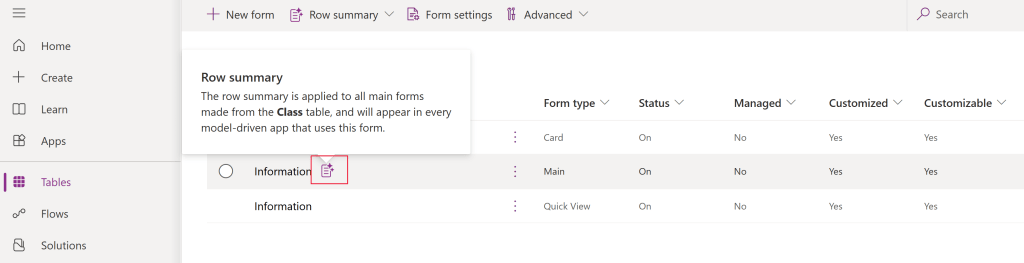
🎯 What does this mean?
- Every model-driven app using this form automatically includes the row summary.
✨ How to Write an Effective Prompt for Row Summaries
Crafting a well-structured prompt ensures that Copilot generates meaningful summaries.
💡 Best Practices for Writing a Prompt:
✔ List the columns to include in the summary. (Alternatively, specify columns to exclude.)
✔ Define the formatting (bulleted list, paragraphs, etc.).
✔ Use structured markdown for clarity.
✔ Leverage AI Builder prompt engineering for more refined responses.
📌 Example Prompt for an Account Summary:
Summarize Account record in a way that is easy to understand for a sales manager. Make sure to include all important information, including main ideas and important details, while keeping the order of the content logical. Remove any repetitive elements to make the summary as concise as possible without losing the original text’s integrity. If the original text is too short to condense, present it as the summary.

Don't include the title in the summary. Create the summary in two paragraphs. For the first paragraph, use the instructions under the header Data. For the second paragraph, use the data under the header Activity. Leave a blank line between the two paragraphs. Don't include the titles Data & Activity in the paragraphs.

Data:

Show the below values as bullet points using markdown text and bold the values. Make the primary contact a navigation link to the contact record. The link must not include query string parameters in it.

Account.Annual Revenue, Account.Category, Account.Industry, Account.Ownership

Activity:

Generate a summary paragraph using the following customer communication fields identifying top 2 key information and top 2 important actions to take.

Account.Regarding (Phone Call).Subject, Account.Regarding (Email).Subject
✏️ Editing a Row Summary
You can modify an existing row summary:
1️⃣ Open the table in Power Apps.
2️⃣ Under Customizations, select Row Summary (Applied).
3️⃣ Make necessary updates and Apply to Main Forms.
🔄 Changes instantly reflect across all forms in the table.
❌ Hiding a Row Summary from All Forms
If you want to remove the row summary:
1️⃣ Open Power Apps → Select Tables.
2️⃣ Under Data Experiences, select Forms.
3️⃣ Click Row Summary > Hide on All Main Forms.
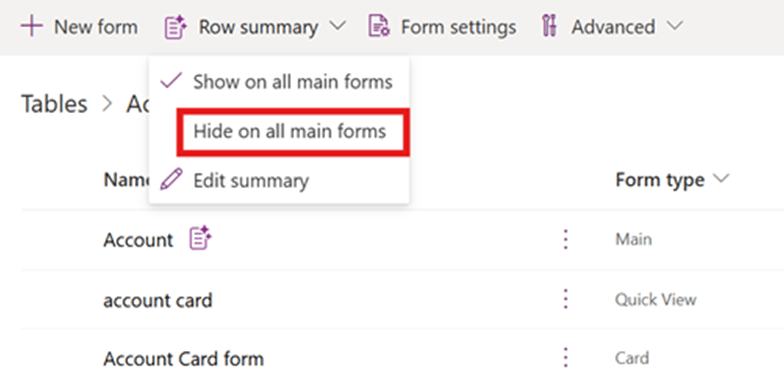
🚫 This will disable Row Summaries across all main forms for that table.
🎯 Why Use Row Summaries?
✔ Saves time by surfacing key details at a glance.
✔ Enhances productivity with AI-powered insights.
✔ Improves data accessibility by reducing clutter on complex forms.
✔ Boosts collaboration by enabling easy sharing of summarized records.
🚀 Start using Row Summaries today to streamline workflows and make data more actionable!
 My Trial