

Filling out forms in model-driven apps just got easier with Copilot’s AI-powered form fill assistance! Whether you’re manually entering records or pasting data from another source, Copilot intelligently suggests values for text, numeric, choice, and date fields—helping you save time and reduce errors.
Let’s explore how this feature works, its limitations, and how to leverage smart paste (Preview) to make data entry even smoother.
🛠 How Copilot’s Form Fill Assistance Works
Copilot automatically suggests values for fields in main and quick create forms based on:
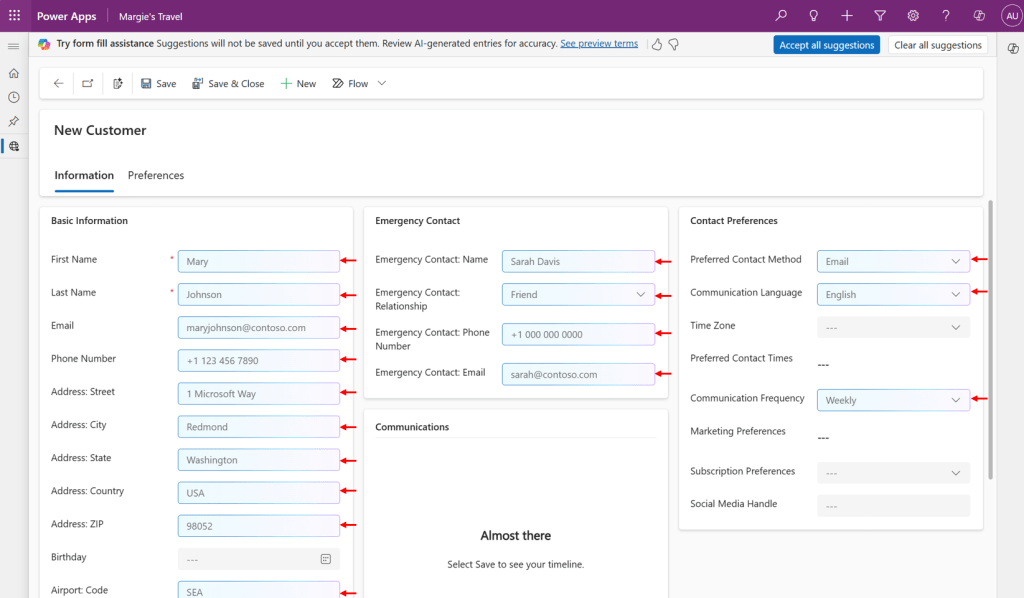
✔ Your previous app usage – Frequently used data and previously updated records.
✔ Existing information in the form – Copilot analyzes related data to make informed suggestions.
✔ Smart Paste (Preview) – If you copy text from another document or email, Copilot can extract relevant information and suggest it for the appropriate fields.
📝 Example Use Case:
Imagine you’re a sales representative entering a new lead into Dynamics 365. Instead of manually filling out contact details, Copilot suggests the lead’s name, email, and company information based on your recent records or pasted content.
Best part? Suggestions are completely optional—nothing is saved until you accept them!
🔄 Smart Paste (Preview): Copy & Paste Smarter!
With Smart Paste, Copilot takes a plain-text clipboard copy and intelligently maps it to form fields.
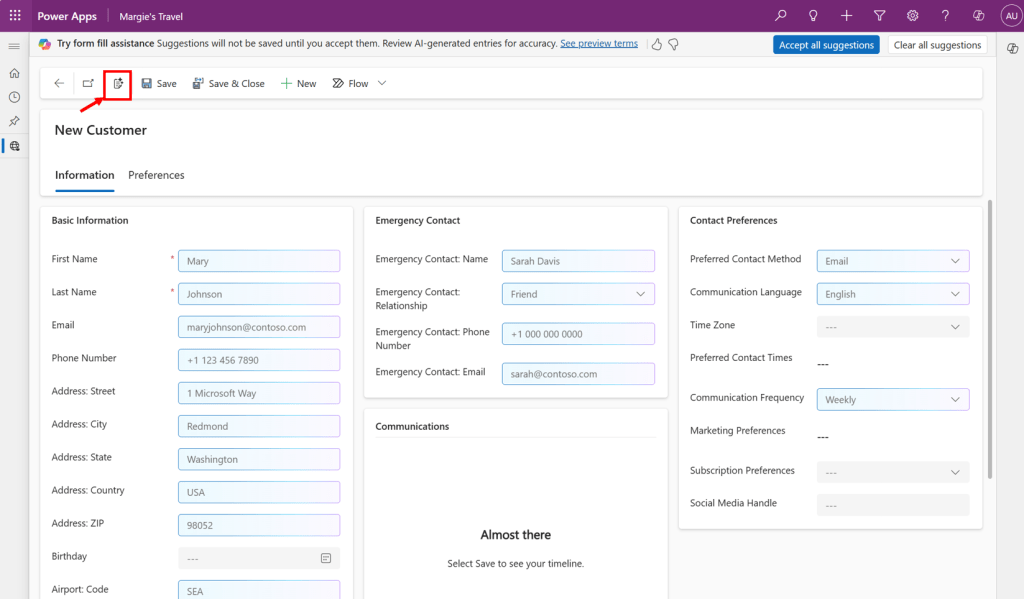
📝 How to Use Smart Paste:
1️⃣ Copy the text (for example, an email signature containing contact details).
2️⃣ Use Smart Paste by clicking the Smart Paste icon in the command bar OR pressing Ctrl+V / Cmd+V when no specific field is selected.
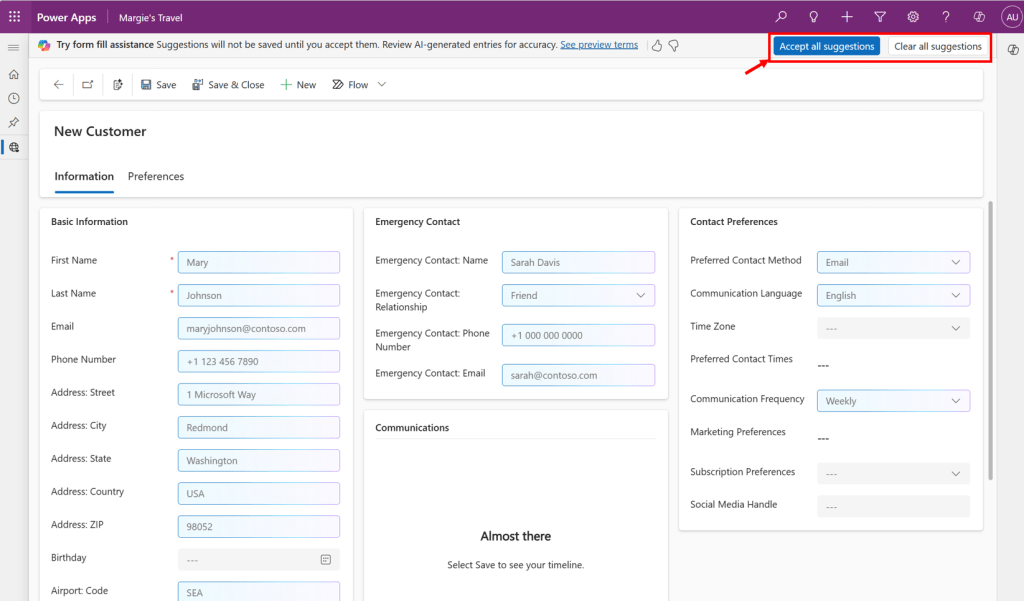
3️⃣ Copilot suggests values inline for form fields like name, email, phone number, and company.
4️⃣ Accept individual values or click “Accept all suggestions” for a faster experience.
🎯 Example:
📩 Copied text from an email:
“John Doe | ACME Inc. | johndoe@acme.com | (123) 456-7890″
📊 Smart Paste Suggestion:
✔ Name: John Doe
✔ Company: ACME Inc.
✔ Email: johndoe@acme.com
✔ Phone: (123) 456-7890
💡 Pro Tip: You can always edit, replace, or reject any suggestions before saving!
🚀 Key Features & Actions
✔ Accept Individual Suggestions: Click the ✅ checkmark or press Enter to accept a field suggestion.
✔ Accept All Suggestions: Select “Accept all suggestions” on the notification bar to apply all suggestions in the current tab.
✔ Clear Suggestions: Click “Clear all suggestions” to remove all recommendations.
✔ Modify Suggestions: Simply edit or delete the suggested value to enter your own data.
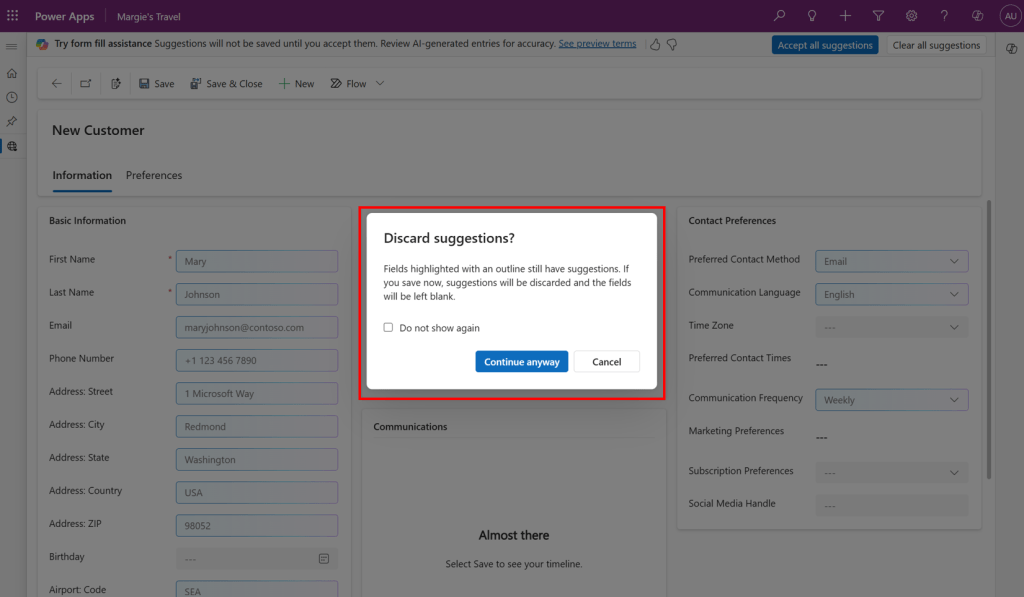
✔ Navigate Away Prompt: If you try to leave with unsaved suggestions, Copilot prompts you to confirm whether you want to discard them.
📌 Tip: Want to avoid this prompt in the future? Select “Do not show again” when prompted.
❗ Limitations to Keep in Mind
🚧 This feature is fully available in Dynamics 365 apps but still in preview for Power Apps.
🚧 Copilot currently supports only:
✔ Text, Numeric, Choice, and Date fields
✔ Main and Quick Create Forms
🚧 Column security fields are not supported yet.
🚧 Limited language support (supports major global languages like English, French, Spanish, German, Japanese, etc.).
📣 Why You Should Use Copilot Form Fill Assistance
💡 Time-saving: Reduce manual data entry and boost productivity.
✅ Fewer errors: AI-based suggestions improve accuracy.
📋 Seamless integration: Works effortlessly within existing forms.
⚡ Quick adoption: Easy to use with minimal learning curve.
🎯 Final Thoughts & How to Get Started
1️⃣ Ensure Copilot Assistance is Enabled – Available in model-driven apps with the modern refreshed look.
2️⃣ Try Out Smart Paste – Make form filling effortless by pasting from external sources.
3️⃣ Provide Feedback – Use the 👍👎 icons to improve AI suggestions.
🚀 Take advantage of AI-powered form filling today and experience the future of effortless data entry!
 My Trial