

Why Form Performance Isn’t Just a Developer Concern
When users complain about an app being “slow,” they’re rarely pointing at infrastructure, they are reacting to the very first thing they experience: how long it takes for a form to load and respond.
In model-driven Power Apps, forms are central to every interaction. Whether it’s a seller editing a lead, or an agent resolving a case, a sluggish form can break focus and reduce productivity.
This post explores how to design highly performant forms for model-driven apps from smart layout decisions to JavaScript best practices, all aimed at faster loads, smoother interactions, and happier users.
🧠 The Anatomy of a Performant Form
A performant form is one that loads quickly, renders only what’s needed, and does the heavy lifting after the initial user interaction. Here’s how to achieve that:
🎯 Prioritize the Default Tab
The default tab is rendered in full when the form loads, every control in that tab will initialize. Place only the most-used, critical fields on this tab. Everything else? Move it to a secondary tab. Tabs that aren’t immediately needed won’t be loaded until clicked or focused via script.
Best practice:
- Limit subgrids, quick views, or timeline controls in the default tab.
- Think like a user: What do they need in the first 2 seconds?
📊 Data-Heavy Controls: Handle with Care
Certain controls demand additional data, meaning additional wait time. These include:
- Subgrids
- Quick view forms
- Assistant (from Dynamics 365 Sales Insights)
- Timeline
These are powerful tools, but only place the most-used ones on the default tab. Spread the rest across secondary tabs to allow for deferred loading.
Other moderately heavy controls you should manage smartly:
- Lookup fields
- Web resources
- iFrames
🖥️ Browser Strategy Matters
Even with optimal form design, unsupported or outdated browsers can nullify performance gains. Always ensure users are on:
- Microsoft Edge (latest)
- Chromium-based browsers
- Latest versions of Firefox or Safari (with caution)
Avoid using older, unsupported browsers. They may miss out on caching, rendering, or JS execution improvements that the Power Platform depends on.
⚡ Say No to New Windows
Avoid opening forms in new windows (via window.open or the openForm API with useNewWindow: true). New windows don’t benefit from in-memory caching and must re-fetch all resources.
Instead, leverage the multisession experience, which opens forms in new tabs within the same app session, preserving context and improving speed.
💡 JavaScript: Customize Intelligently
JavaScript unlocks advanced scenarios, but done wrong, it’s a performance killer.
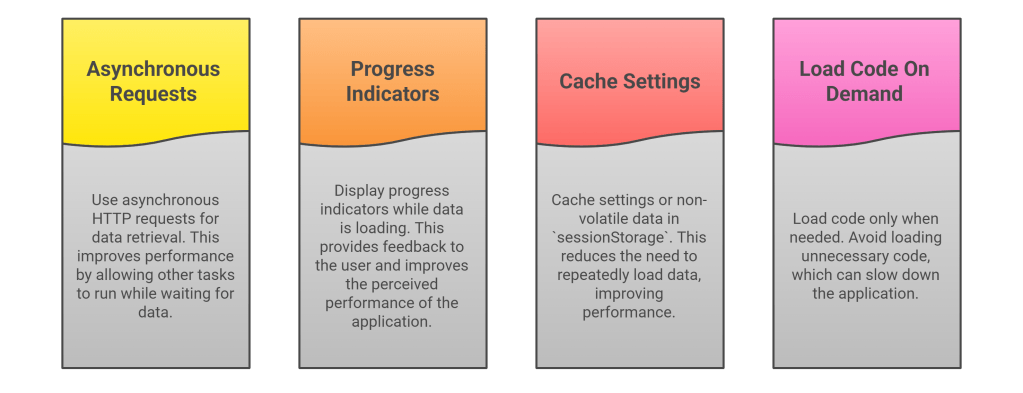
✅ DO:
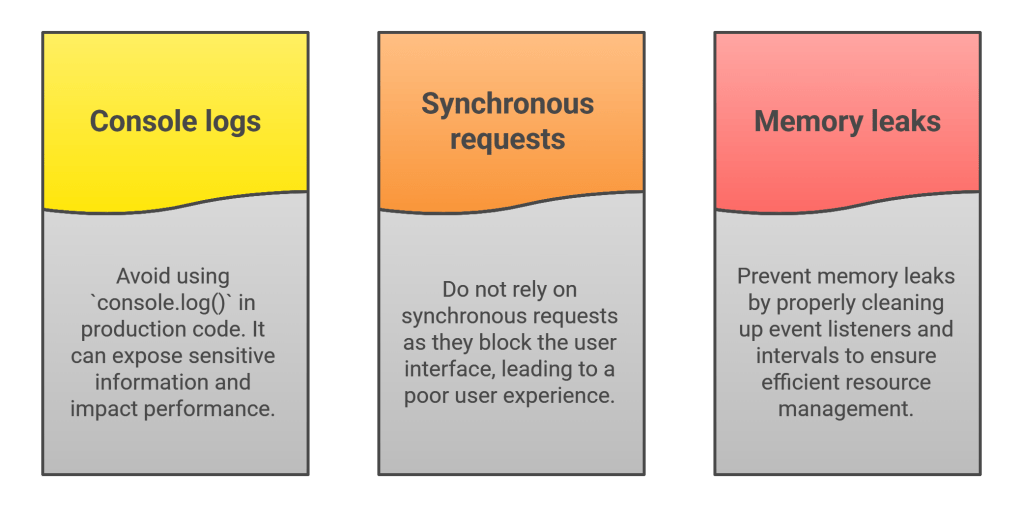
❌ DON’T:
🧰 Use the Tools Microsoft Provides
🧪 Performance Insights
Helps you spot slow forms, pages, and tabs, then gives prioritized, actionable recommendations.
🧹 Solution Checker
Scans JavaScript, plugins, form XML, and more to flag performance issues like:
- Selecting all columns in a query
- Using synchronous web requests
- Calling
refreshRibbonin OnLoad events
🔍 Object Checker
Performs real-time diagnostics on components and provides recommendations to fix common configuration inefficiencies.
📦 Recap: Performance-First Form Design Checklist
✅ Use lightweight default tabs
✅ Push heavy controls into secondary tabs
✅ Avoid opening new windows
✅ Use async data requests + caching
✅ Clean up event handlers and global memory leaks
✅ Target modern browsers
✅ Run Solution Checker + Performance Insights regularly
🗣️ Final Thoughts
Performance isn’t just about speed, it is about trust. A user-facing slowdown can feel like the app is broken. With the strategies above, you can design forms that not only load fast but scale across teams and roles with ease.
Your next step: audit one of your most-used forms using these tips and run Solution Checker to validate what you missed.
 My Trial