

In the previous post, we connected to Dataverse using delegated OAuth with ServiceClient.
That works great for:
- Console tools
- Admin utilities
- Interactive scripts
But what if:
- There is no user?
- The code runs in Azure?
- It’s a scheduled background job?
- It’s a production integration layer?
This is where Server-to-Server (S2S) authentication comes in.
What Is Server-to-Server (S2S)?
S2S means:
An application authenticates directly with Dataverse without user interaction.
No login popup.
No MFA prompt.
No interactive session.
Instead:
- The application identity itself is trusted.
- Dataverse sees it as an Application User.
- Security roles are enforced just like any other user.
This is the correct architecture for:
- Azure Functions
- Background workers
- Integration middleware
- CI/CD pipelines
- Web APIs
- Data sync engines
The Core Concept: Application User
This is the most misunderstood part. Registering an app in Entra ID is not enough. Dataverse must know about that application.
So you must:
- Register App in Entra ID
- Generate Client Secret (or certificate)
- Go to Dataverse → Users → Application Users
- Create a new Application User
- Assign security roles
Without this step, your authentication succeeds — but your API calls fail.
Single-Tenant vs Multi-Tenant (We Focus on Single-Tenant Here)
In this post, we focus on Single-Tenant S2S, meaning:
- App runs inside your organization.
- One Entra tenant.
- One or more Dataverse environments.
- Internal enterprise integration.
Multi-tenant (ISV/SaaS) comes in the next post.
Step 1: App Registration (Application Permissions)
In Entra ID:
- Create App Registration.
- Go to Certificates & Secrets.
- Create a Client Secret.
- Under API Permissions:
- Add Dynamics CRM
- Choose Application permissions
- Grant admin consent.
Important difference from delegated:
We are not using user_impersonation. We are using application permissions.
Step 2: Create Application User in Dataverse
Inside your Dataverse environment:
- Go to Power Platform Admin Center.
- Open your environment.
- Go to Settings → Users + Permissions → Application Users.
- Click “New App User”.
- Select your registered application.
- Assign security roles.
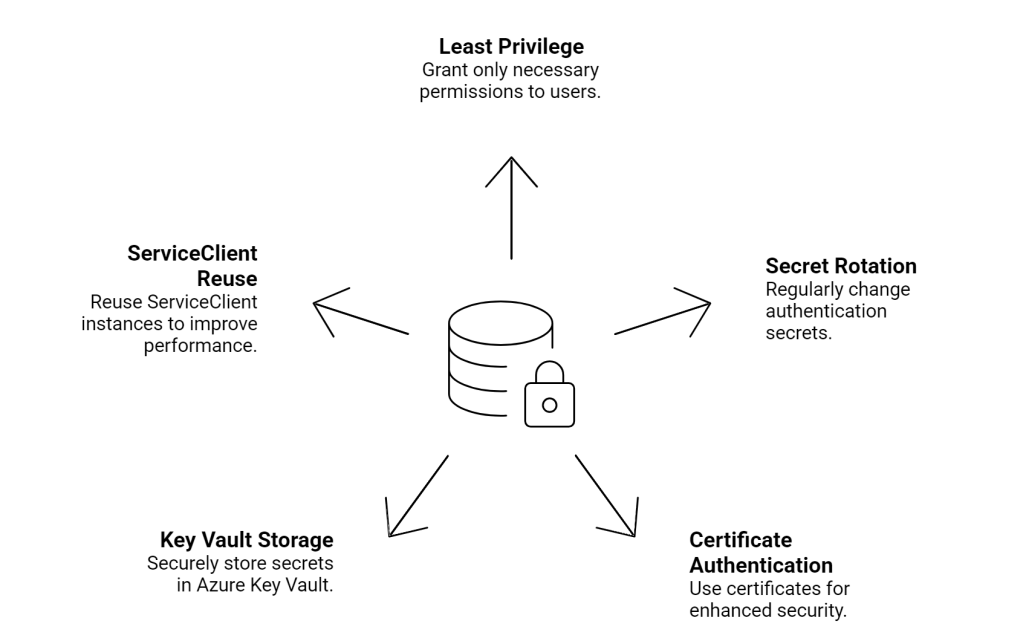
Do NOT assign System Administrator unless absolutely required. Principle of least privilege matters more here.
Step 3: Install Dataverse Client
dotnet add package Microsoft.PowerPlatform.Dataverse.Client
Step 4: Connect Using Client Secret
Here’s the actual code.
using Microsoft.PowerPlatform.Dataverse.Client;
using Microsoft.Xrm.Sdk;
using Microsoft.Xrm.Sdk.Query;
using System;

class Program
{
    static void Main()
    {
        string connectionString =
            "AuthType=ClientSecret;" +
            "Url=https://yourorg.crm.dynamics.com/;" +
            "ClientId=YOUR-APP-ID;" +
            "ClientSecret=YOUR-SECRET;";

        using var service = new ServiceClient(connectionString);

        if (!service.IsReady)
        {
            Console.WriteLine(service.LastError);
            return;
        }

        Console.WriteLine("S2S connection established.");

        var request = new Microsoft.Crm.Sdk.Messages.WhoAmIRequest();
        var response = (Microsoft.Crm.Sdk.Messages.WhoAmIResponse)
            service.Execute(request);

        Console.WriteLine($"Application User ID: {response.UserId}");
    }
}
No login prompt. No redirect URI required. No user context.
What Happens Under the Hood?
When using:
AuthType=ClientSecret
The flow is:
- App sends Client ID + Client Secret to Entra ID.
- Entra validates the secret.
- Entra issues an access token.
- Token represents the application identity.
- Dataverse validates token.
- Dataverse maps app to Application User.
- Security roles are enforced.
- Operation executes.
The key difference from delegated login: There is no human user.
Azure Function Example (Production Pattern)
This is how you would use it in Azure Functions:
public static class DataverseFunction
{
    private static readonly ServiceClient service =
        new ServiceClient(Environment.GetEnvironmentVariable("DataverseConnection"));

    [FunctionName("GetAccounts")]
    public static async Task Run(
        [TimerTrigger("0 */5 * * * *")] TimerInfo myTimer,
        ILogger log)
    {
        if (!service.IsReady)
        {
            log.LogError(service.LastError);
            return;
        }

        QueryExpression query = new QueryExpression("account")
        {
            ColumnSet = new ColumnSet("name"),
            TopCount = 3
        };

        var results = service.RetrieveMultiple(query);

        foreach (var entity in results.Entities)
        {
            log.LogInformation(entity.GetAttributeValue<string>("name"));
        }
    }
}
Best practice:
- Store connection string in Application Settings.
- Do not hardcode secrets.
- Consider Azure Key Vault for secret storage.
Certificate-Based Authentication (More Secure Option)
Instead of Client Secret, you can use a certificate.
Why?
- Secrets expire.
- Secrets can leak.
- Certificates are more secure for enterprise setups.
Connection string example:
AuthType=Certificate;Url=https://yourorg.crm.dynamics.com/;ClientId=YOUR-APP-ID;Thumbprint=YOUR-CERT-THUMBPRINT;
This is preferred for:
- Enterprise production environments
- Long-running backend services
- High-security deployments
Security Best Practices
 My Trial