

Data import using CSV or Excel is a feature that is been there since day one. It is a good end user feature that helps to import data quickly in to Dynamics. Using predefined data maps and template the data can be quickly imported without much effort. The log is also a great addition to know the import status.
If you want to import data using Power Automate, read the CSV or Excel, parse and create the record one by one. The drawback on that approach is that, API request limitation will make the flow throttle if the data volume is larger. But if we use the standard data import using Power Automate Flow that will be robust and have more logging on the status of the import like the failure, success, error message etc.
Now, we will see how we can do the data import process using Power Automate Flow. Firstly we need to read the CSV file using some source, either using a SharePoint location or anything. Once the CSV is parsed and read, the first thing we need to do is to Create a Data Imports record as below.

The next step is to add the Imports record using the below step. The content attribute needs to get populated with the file content. The Import Job ID is the id that is created in the above step. Data Map can be an id of the Data Map config that is created for the CSV template. If you want to auto map then specify Use System Map as Yes (beware this will auto map by the system which you won’t have control over). Target Entity needs to be the entity schema name that you are importing.

Now that by creating the Imports record the import get to submitted status. The next step in the import process is parsing the CSV. This can be invoked using the bound action for entity Data Imports named ParseImport. The Row ID will be the id of the Imports record that is created in the above step.
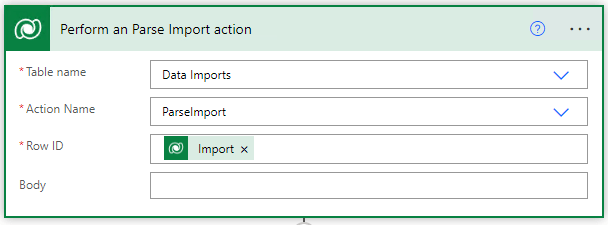
The next step is the transform step. This can be accomplished using another unbound action named TransformImport. ImportId is the id that is created in the second step.

The next step is to start the import process. It can be triggered using the bound action ImportRecordsImport for the entity Data Imports.

Please take note that each action invocation triggers a corresponding system job running in the backend. To ensure the proper sequence, please verify that the system job has succeeded before invoking the next action. This can be achieved by implementing the “do until” step.
You can find a sample flow published on the following GitHub link. Please download it for reference.
 My Trial
Hi,
I am creating records in custom entity through power automate. As per your flow I have set the value of datamaps(guid of the data mapping). but records is not creating in system. Import job is created but status changes from (Submitted –>Parsing–>Failed). Could you please help me with this? If I use system mapping as yes, then everything works perfectly.
LikeLiked by 1 person
As we discussed, it is the Source Entity and Source option on the import file step that caused the problem. The other thing to note is also the content of the file need to passed as plain string instead of base64 or any other format.
LikeLike
Hi jatharpallavi, have you resolved this issue?
LikeLike
I helped her resolve the issue. If you refer exactly the flow that I uploaded in the solution it will perfectly work. If you still got issue you can check the importfile table and see what is the difference between your working import i.e. using manual and using power automate and compare what is missing.
LikeLike
Hi Kailash,
Great Thanks, I refer the flow that you uploaded in the solution and came to know that we need to mention name of the csv file name only (not with csv extension) in Source Entity column in “Add a new import file” step in the flow then it is working fine.
I am looking to import multiple CSV files from a ZIP archive into Dynamics 365 using Power Automate. Any detailed steps, best practices, or insights you can share would be highly appreciated.
LikeLike
how to pass the target entity dynamically, if we skip it showing error,
is there a way we can able to identify the target entity automatically.
LikeLike
Megha, I haven’t tried it with dynamic value though. But if the mapping and the custom entities matches then it shouldn’t be a problem I guess.
I don’t think it is smart enough to pick automatically because it is attached to a entity for that you need to mention which entity you are importing. Having dynamic option is feasible as long as the entity, mapping and the file format matches.
LikeLike
Hai Ramchandran Sir,
Sir is it possible to update the records with this flow.
It works fine for Creating records but if the file has any records with update it is not updating that particular record (in failur error log it shows the data with key already exists)
(Table name: Data imports, Mode: Create and Table Name :imports, upsert Mode: update) is i followed correct step can you please help me
And also tried with
Table name: Data Imports , Mode : Update it shows the file type is invalid (i used the same file for both operation)
Please help me out sir.
LikeLike
Hey Megha, no need to call me sir, call me Kailash. I am happy to help, but before that did you tied to change the import method as update and for update you can’t able to upload any random csv, you need to download it as a static sheet from the Dataverse itself and make amendments to it and then try to import and see. In order for update to work the csv file need to have the guid of the records to be in there. Try that and see if it works or not.
If you still face issue, what you can do is, export a static sheet out from dataverse, import it using out of the box import and then query the imports table and data imports table to see what is the configuration it uses, apply the same in the power automate and see how it behaves. These are few ways you can troubleshoot and find a solution.
To be frank, I haven’t tied the update yet, If I got time I will also do try and let you know. In the mean time you can try those above items.
LikeLike
Hi Kailash, I am using Data Map(GUID) in Add a new import file step and Use System Map as No, still file import failed, but if i removed Data Map(GUID) and Use System Map as Yes then file imported successfully, please suggest any solution on this.
I am not getting any error or log, related system job and Power automate succeed. But import job status struck failed (Submitted –>Parsing–>Failed).
I used data map using manual import and is it working fine.
Same data map id used in power automate import but getting the failed import job, system job succeed with power automate also succeed without any errors or log
Please help me to fix the issue, please provide the complete guide
LikeLike
Thank you so much Kailash, i will try to follow your inputs.
LikeLike
Hi Kailash, do you have a full guide on this as I seem to be getting stuck in certain gaps in the above guide 🙂
LikeLike
Hey Sam, thanks for getting in touch. This guide is the most comprehensive one I can offer since there isn’t official documentation from Microsoft on this matter. If you need help with something specific or if you’re stuck on a particular issue, please don’t hesitate to reach out to me on my Gmail. I’m more than willing to assist you further.
LikeLike
Hi Kailash, I am using Data Map(GUID) in Add a new import file step and Use System Map as No, still file import failed, but if i removed Data Map(GUID) and Use System Map as Yes then file imported successfully, please suggest any solution on this.
LikeLike
Hey Deeraj, thanks for your comment. Did you check the log and see any specific error message you have? Did you tried to use the data map using manual import and is it working fine for that import if you specify that mapping while import?
LikeLike
We are not getting any error or log, related system job and Power automate succeed. But import job status struck failed (Submitted –>Parsing–>Failed).
I used data map using manual import and is it working fine.
Same data map id used in power automate import but getting the failed import job, system job succeed with power automate also succeed without any errors or log
LikeLike
Thanks for your response, I have uploaded the updated version of a flow solution in the post footer, please refer it for updated one. The source needs to be set if you are using datamapping and that is the reason it was failing. Please give it a try and let me know how it goes.
LikeLike
Hi Kailash,
Thanks, Issue is resolved now, i put csv file name in the Source Entity column and it worked .
In another scenario I am working on the zip file(multiple csv) import via power automate Any detailed steps, best practices, or insights you can share would be highly appreciated.
LikeLike
There are several ways to achieve this, Dheeraj, but without knowing your specific situation, it’s challenging to provide precise advice. However, using Power Automate is definitely an option. You could store the zip file in a central repository, unzip it, and loop through the files for importing. Consider storing mapping GUIDs in a configuration file. Depending on codes in the filenames, you can select the correct mapping to perform the import. Configuring details like target entity names within this setup can simplify management, especially if the filenames in your data dump are consistent. If the filenames are dynamic, however, it could complicate the identification process.
LikeLike
Hi Kailash, thanks for sharing, actually we have used same steps as shared by you then we get this issue, what is your experience ,have you got this issue or data import successfully at your end?
LikeLike
Hi Kailash, I am using Data Map(GUID) in Add a new import file step and Use System Map as No, still file import failed, but if i removed Data Map(GUID) and Use System Map as Yes then file imported successfully, please suggest any solution on this.
I am not getting any error or log, related system job and Power automate succeed. But import job status struck failed (Submitted –>Parsing–>Failed).
I used data map using manual import and is it working fine.
Same data map id used in power automate import but getting the failed import job, system job succeed with power automate also succeed without any errors or log
Please help me to fix the issue, please provide the complete guide
LikeLike