


Max: Hey Zoe, have you checked out the new Automation Center in Power Automate? It’s still in preview, but it’s packed with features that can totally change the way we monitor and troubleshoot our automations.
Zoe: Oh, I’ve heard about it, Max. It’s supposed to be a one-stop hub for all things automation, right? But tell me, what makes it so special?
Max: Exactly! The Automation Center is like the control tower for everything Power Automate. Whether you’re a maker, operator, or part of a Center of Excellence (CoE), this tool gives you a bird’s-eye view of your entire automation landscape.
Zoe: That sounds handy, especially for managing complex flows. But what about the data it handles? How does it visualize everything?
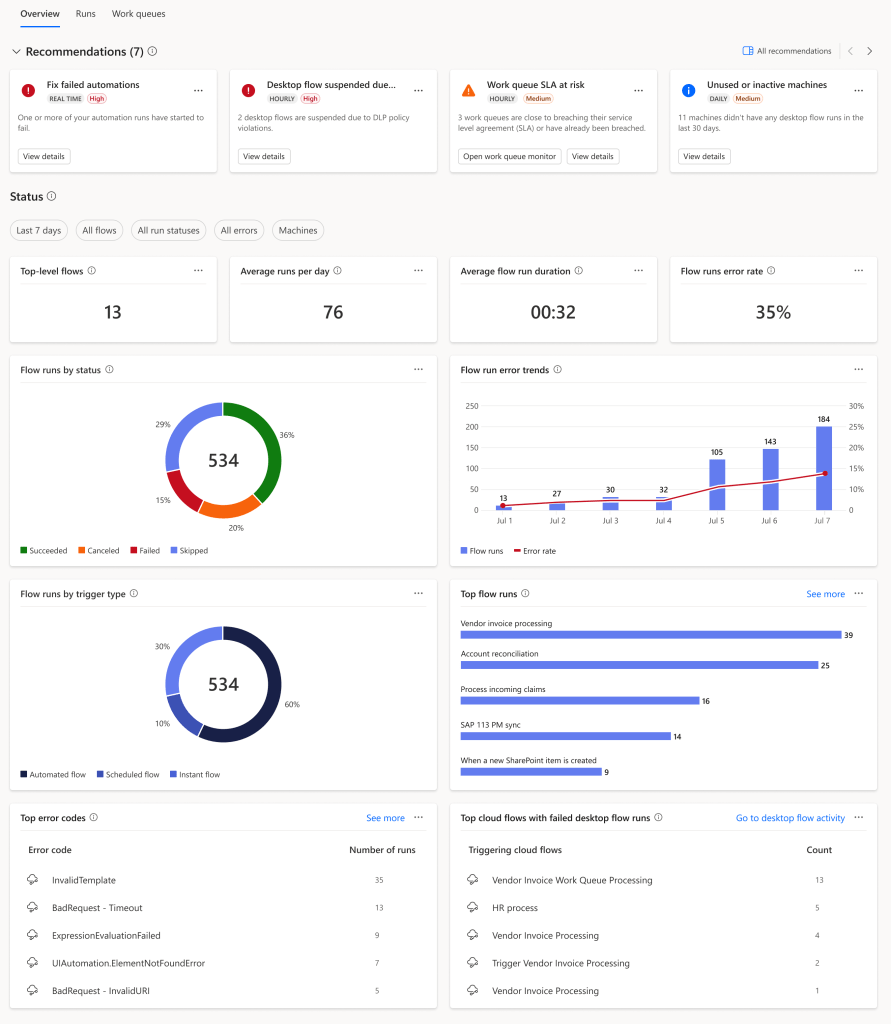
Max: Great question! The data and visualization strategy of the Automation Center revolves around cloud and desktop flow run data stored in Microsoft Dataverse. The Overview tab, for instance, gives you a snapshot of all your flow activities. You can see if the entire automation succeeded or failed, check total and average durations, and even dive into specifics like error rates and top error codes.
Zoe: That’s pretty cool. But let’s get into the practical stuff—permissions. How does it handle security?
Max: Ah, security! The Automation Center uses role-based access control (RBAC) via Dataverse. In a standard environment, permissions are tied to specific tables like Flow Run, Flow Session, and Work Queue. If you have the Environment Maker role, you’re good to go, but admins can also create custom roles for more granular control.
Zoe: Got it. Now, what if I’m more interested in high-level insights—like knowing which automations need attention or might fail soon?
Max: That’s where the Recommendations section on the Overview tab comes in. It provides actionable insights into your automation health. For example, it can point out flows that frequently fail or work queues that are at risk of not meeting their SLAs. It’s a proactive way to manage your automations.
Zoe: I see. And I heard something about Copilot being integrated into the Automation Center. How does that work?
Max: Yes, Copilot is like your automation assistant. It helps analyze automation activity, work queue performance, and even answers questions about Power Automate capabilities. Just ask, and it’ll provide insights or generate reports based on your queries.
Zoe: Sounds like a game-changer! But what about real-time monitoring—like keeping tabs on specific flows?
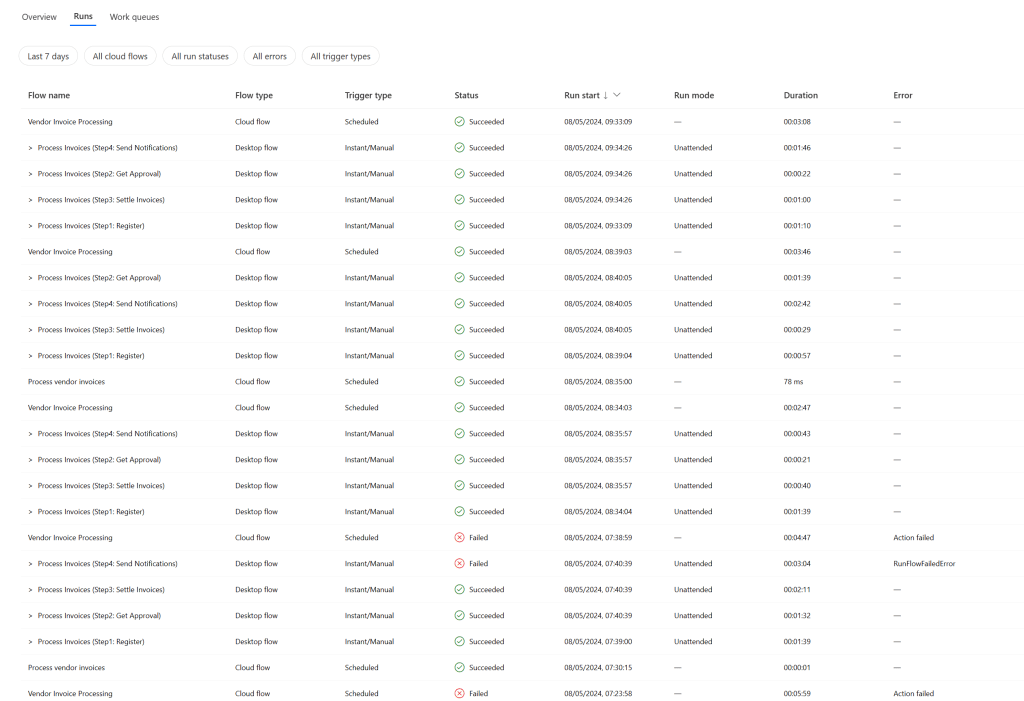
Max: For that, the Runs tab is your go-to. It shows a hierarchical list of cloud and desktop flow runs, making it easy to trace errors and see how different flows are connected. If a top-level flow fails but individual sessions succeeded, you can quickly pinpoint the issue.
Zoe: That’s super useful. But, knowing Microsoft previews, there must be some limitations, right?
Max: You’re spot on, Zoe. There are a few things to watch out for. For instance, it currently only shows solution-based cloud flows, and you need to be the owner of a flow to see its history. Also, top-level desktop flows and co-owned flows aren’t supported yet.
Zoe: That’s good to know. But overall, it sounds like the Automation Center is going to be a huge help, especially when it’s fully released.
Max: Absolutely! Even in preview, it’s a powerful tool for anyone involved in automation with Power Automate. Whether you’re managing daily operations or troubleshooting complex issues, the Automation Center is set to make our lives a whole lot easier.
Zoe: I can’t wait to dive deeper into it. Thanks for the rundown, Max!
Max: Anytime, Zoe! Let’s keep an eye on this as it evolves—there’s so much more to explore.

