

If you’ve worked with older Dynamics 365 or CRM SDK codebases, you’ve probably seen this:
AuthType=Office365
Or worse silent authentication failures after Microsoft tightened security policies.
This post explains:
- Why legacy authentication was deprecated
- What breaks in old solutions
- How to migrate safely
- How to modernize your tooling
If you’re maintaining older code, this post matters.
Why Office365 / WS-Trust Was Deprecated
Historically, Dynamics CRM used:
- WS-Trust
- Username + password authentication
- Basic auth flows
These approaches:
- Did not support MFA properly
- Broke under Conditional Access policies
- Were less secure
- Relied on older identity protocols
Modern Dataverse uses:
OAuth 2.0 + OpenID Connect via Microsoft Entra ID
Everything in this series Delegated, S2S, SPA is built on OAuth.
Legacy auth is no longer supported in secure environments.
What Breaks in Legacy Code
You’ll typically see errors like:
- “Ws-Trust authentication is deprecated”
- “User authentication failed”
- MFA prompts that never resolve
- Conditional Access failures
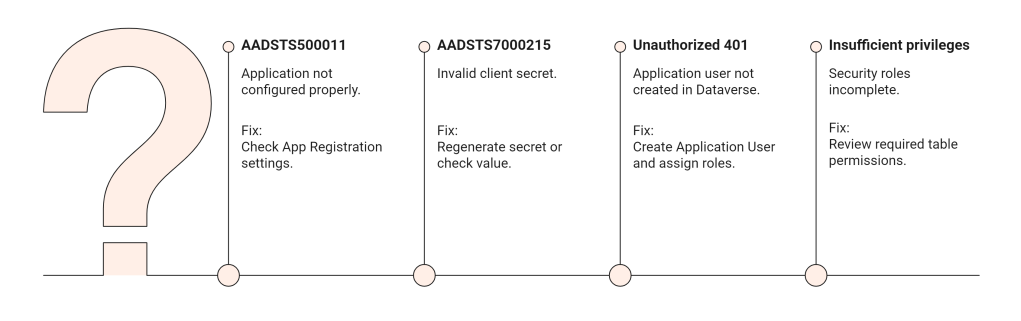
- AADSTS errors
If your connection string looks like this:
AuthType=Office365;Username=user@domain.com;Password=plaintextpassword;Url=https://yourorg.crm.dynamics.com;
That is outdated. It must be replaced.
Migration Strategy Overview
There are two paths depending on your scenario:
| Old Pattern | Replace With |
|---|---|
| Username/Password tool | OAuth Delegated |
| Background service | ClientSecret S2S |
| Enterprise integration | Certificate-based S2S |
| Windows utility | ServiceClient + OAuth |
The key question: Is this user-based or application-based? That determines the replacement.
Migrating to Modern OAuth (Delegated)
If your tool was:
- A console app
- A migration script
- An admin utility
Replace old connection string with:
string connectionString = "AuthType=OAuth;" + "Url=https://yourorg.crm.dynamics.com/;" + "ClientId=YOUR-APP-ID;" + "RedirectUri=http://localhost;" + "LoginPrompt=Auto;";
Steps:
- Create App Registration
- Add SPA or public client redirect URI
- Add delegated permission:
- user_impersonation
- Grant consent
- Remove stored passwords from code
This immediately makes your tool compatible with:
- MFA
- Conditional Access
- Security policies
Migrating Background Services to S2S
If your legacy code ran without user interaction and used stored credentials: You must migrate to Client Secret or Certificate authentication.
Replace:
AuthType=Office365Username=...Password=...
With:
AuthType=ClientSecret;Url=https://yourorg.crm.dynamics.com;ClientId=YOUR-APP-ID;ClientSecret=YOUR-SECRET;
Then:
- Add application permissions
- Create Application User in Dataverse
- Assign security roles
No more passwords.
Why You Should Prefer Certificates Over Secrets
Secrets:
- Expire
- Can leak
- Must be rotated
Certificates:
- More secure
- Better for enterprise environments
- Preferred for production
Certificate connection example:
AuthType=Certificate;Url=https://yourorg.crm.dynamics.com;ClientId=YOUR-APP-ID;Thumbprint=YOUR-CERT-THUMBPRINT;
For long-running production systems, certificates are strongly recommended.
Updating Old CrmServiceClient Code
Older projects may use:
CrmServiceClient
That’s still supported but the auth mechanism must change.
Instead of:
AuthType=Office365
Use:
AuthType=OAuth
Or:
AuthType=ClientSecret
The class may stay the same the auth type changes.
Common Migration Errors
 My Trial