

In the previous articles, we discovered that Dataverse Search doesn’t scan your database every time someone performs a search.
Instead, it searches a dedicated search index that is maintained in the background.
That naturally leads to another question:
How does Dataverse decide what actually goes into that index?
Does every table get indexed?
Does every column become searchable?
Can administrators control what users can search?
The answer is yes but only when the environment is configured correctly.
In this article, we will explore the configuration behind Dataverse Search and how solution architects can design an effective search experience.
The Search Pipeline
Before discussing configuration, it’s useful to understand the complete lifecycle of searchable data.
User creates or updates a record │ ▼Dataverse detects the change │ ▼Eligible table? │ ▼Eligible searchable columns? │ ▼Background indexing service │ ▼Search Index updated │ ▼User searches │ ▼Security trimming │ ▼Ranked search results
Notice that indexing is only one stage.
Several Dataverse features work together to produce the final search experience.
Dataverse Features That Participate in Search
One common misconception is that Dataverse Search is a single feature.
In reality, it relies on several platform capabilities working together.
| Dataverse Feature | Purpose |
|---|---|
| Dataverse Search | Provides the global search experience across multiple tables. |
| Search Settings | Controls which tables participate in Dataverse Search. |
| Table Metadata | Determines whether a table can participate in search. |
| Quick Find View | Identifies which columns contribute searchable data and which columns appear in results. |
| Search Index Service | Continuously builds and updates the search index in the background. |
| Security Model | Ensures users only see records they have permission to access. |
| Relevance Ranking | Orders results based on how well they match the user’s search terms. |
Together, these capabilities create the fast, secure, and relevant search experience users expect.
Configuring Dataverse Search
The first step is enabling Dataverse Search for the environment.
From the Power Platform admin experience, administrators can enable Dataverse Search and select which tables should participate.
Not every table needs to be indexed.
In fact, indexing unnecessary tables can make search results noisier and less useful.
Good candidates include:
- Accounts
- Contacts
- Cases
- Opportunities
- Products
- Knowledge Articles
Less suitable candidates include:
- Configuration tables
- Logging tables
- Temporary processing tables
- Integration tracking tables
Search quality is often improved by indexing fewer but more meaningful tables.
The Role of the Quick Find View
One of the most overlooked aspects of Dataverse Search is the Quick Find View.
Although Dataverse Search uses its own indexing technology, it still relies on the Quick Find View to understand which columns should be searchable and which columns should appear in search results.
For example, an Account Quick Find View might include:
- Account Name
- Account Number
- City
- Primary Contact
- Email Address
These columns become candidates for indexing.
If a column isn’t included in the Quick Find View, users generally won’t be able to find records by searching that value.
For developers and solution architects, maintaining the Quick Find View is one of the simplest ways to improve the search experience.
What Happens When Data Changes?
Whenever searchable information changes, Dataverse automatically updates the search index.
For example:
- A new customer is created.
- A case title changes.
- An opportunity is renamed.
- A product code is updated.
These changes are processed by the indexing service so that future searches reflect the latest data.
This process happens automatically and requires no manual intervention in normal circumstances.
Designing a Good Search Experience
A well-designed search experience isn’t about indexing everything.
It’s about indexing the right information.
Ask yourself:
- Which columns do users actually search?
- Which tables are used every day?
- Which data should remain discoverable?
- Which technical tables should stay hidden?
Good search design reduces noise while helping users find business information quickly.
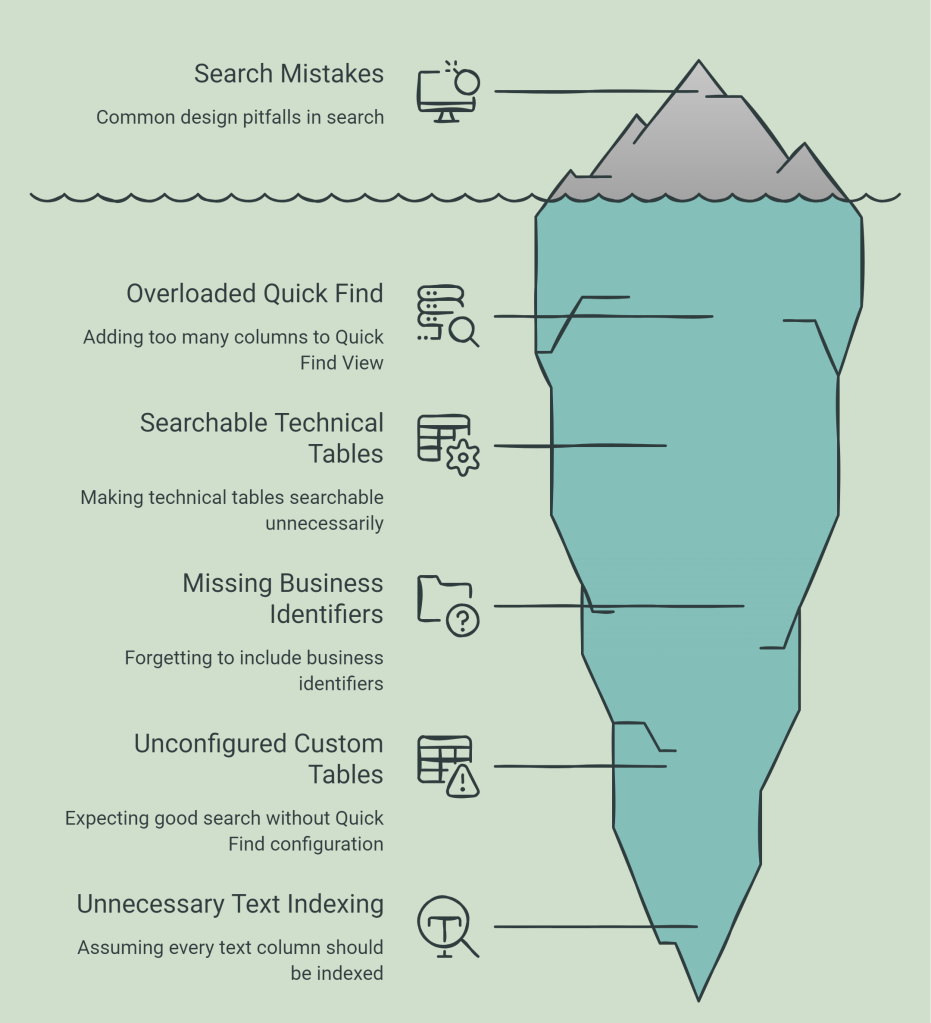
Common Design Mistakes
Best Practices
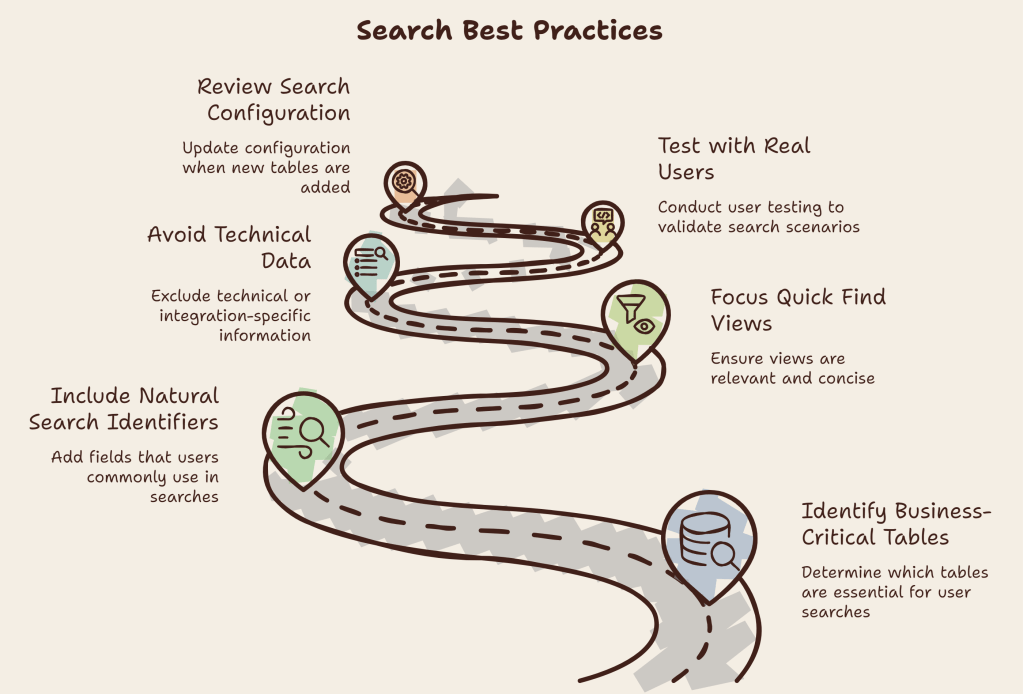
Small configuration changes can significantly improve usability.

