


“Enabling Dataverse Search is only the beginning. The real user experience is shaped by how you configure the search behaviour.”
In the previous article, we explored the Dataverse Search section in the Power Platform Admin Center and learned how Search Indexing, the Global Search Bar, and Search-Only Experiences work together to build the foundation for modern search.
Now it’s time to look at the second group of settings.
While the first group focuses on building the search platform, this group focuses on how users interact with it.
These settings control search behaviour, performance, Quick Find integration, and even how Dataverse records can be discovered from Microsoft 365 applications.
They are found under:
Power Platform Admin Center → Environment → Settings → Product → Features → Search
Unlike the Dataverse Search settings discussed previously, these options fine-tune how searching behaves after Dataverse Search has already been enabled.
Understanding the Search Settings
The Search section contains five independent settings.
Each one solves a different problem.

Let’s look at each one in detail.
1. Single Table Search Option
One of the biggest advantages of Dataverse Search is its ability to search across multiple tables.
But what happens when users already know exactly where they’re working?
Imagine a customer service representative viewing the Cases table.
They don’t necessarily want to search Accounts, Contacts, Opportunities and Knowledge Articles.
They simply want to search Cases.
That’s exactly what the Single Table Search Option provides.
When enabled, Dataverse Search offers users a shortcut to limit the search to the current table directly from the view page.
Instead of searching the entire environment, users can immediately narrow the results.
Example
Without Single Table Search:
SearchContoso↓AccountsContactsCasesProductsKnowledge Articles
With Single Table Search:
Cases↓Search↓Cases Only
When should you enable it?
This feature works particularly well for:
- Customer Service teams
- Sales teams
- Finance users
- Large operational environments
where users spend most of their day inside one business table.
Architect’s Perspective
Think of Global Search as discovering information, while Single Table Search is working with information.
The two features complement one another rather than compete.
2. Prevent Slow Keyword Filter for Quick Find Terms on View Pages
This setting is often overlooked because it only becomes relevant when Dataverse Search isn’t available or when Quick Find is still being used.
Quick Find relies on SQL-based searches.
Poorly designed Quick Find Views or very broad search terms can generate expensive database queries.
Microsoft introduced this setting to protect environments from slow keyword searches that may negatively impact performance.
When enabled, the platform prevents inefficient keyword filters from running.
When disabled, those searches are still allowed, but users receive a warning that the query may be slow.
Why does this matter?
Imagine an environment containing millions of records.
Searching a very common keyword using Quick Find could potentially scan a large amount of data.
Dataverse Search largely avoids this issue because it searches a dedicated search index rather than operational database tables.
3. Quick Find Record Limits
Quick Find was designed to help users quickly locate records not return thousands of matches.
For this reason, Dataverse limits the number of records returned during a Quick Find search.
Many administrators are tempted to increase these limits after receiving requests such as:
“Can we return more search results?”
In reality, increasing record limits rarely improves usability.
If users consistently receive hundreds of matching records, the problem usually isn’t the limit.
It’s the search design.
Better search fields, better identifiers, and Dataverse Search generally provide a better solution than increasing record counts.
Best Practice
Treat record limits as a performance safeguard rather than an inconvenience.
Focus on helping users find the correct record not every possible record.
4. Use Quick Find View of an Entity for Searching on Grids and Sub-grids
This setting is where Quick Find and Dataverse Search begin to intersect.
The Quick Find View defines:
- Which fields users can search.
- Which columns appear in search results.
- Which filter conditions apply.
When this option is enabled, grids and sub-grids use the Quick Find View to determine how searches behave.
5. Search for Records in Microsoft 365 Apps
Perhaps the least known capability in this section is Microsoft 365 integration.
When enabled, users can search for Dataverse records directly from Microsoft 365 applications such as Outlook and Word.
Imagine composing an email in Outlook.
Instead of switching to Power Apps, finding the Account, and copying a link, users can search for the record directly within Outlook and insert a Dataverse link.
This helps users stay within the applications they already use every day.
Governance Considerations
This feature should be evaluated carefully.
Because records become discoverable from Microsoft 365 applications, organisations should review:
- Compliance requirements
- Data residency
- Geographic boundaries
- Information governance policies
Highly regulated industries should always involve governance and security teams before enabling this capability.
Bringing Everything Together
The Search settings don’t build Dataverse Search.
Instead, they refine how users experience it.
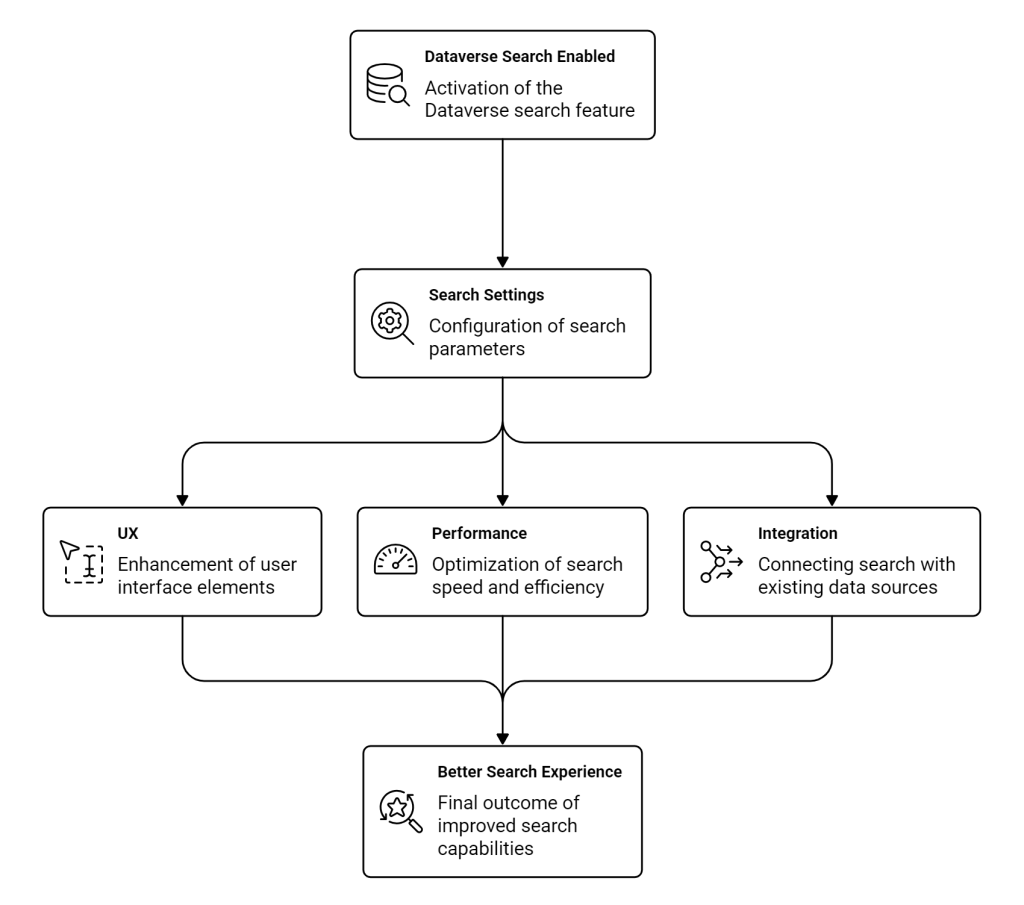
Each setting improves a different aspect of the overall experience.
Best Practices
When configuring Search settings, I generally recommend the following approach:
| Setting | Recommendation |
|---|---|
| Single Table Search | Enable for most organisations. |
| Prevent Slow Keyword Filters | Leave enabled to protect performance. |
| Quick Find Record Limits | Keep defaults unless there’s a justified business requirement. |
| Use Quick Find View | Enable and invest time designing quality Quick Find Views. |
| Microsoft 365 Search | Enable only after reviewing compliance, governance, and data residency requirements. |
Key Takeaways
The Search section in the Power Platform Admin Center isn’t about enabling Dataverse Search.
It’s about refining it.
These settings influence:
- User productivity
- Search performance
- Grid behaviour
- Microsoft 365 integration
- Overall user experience
Small configuration changes can have a significant impact on how users discover and work with business data.
Understanding these settings allows administrators and solution architects to move beyond simply enabling search and begin optimising it for enterprise-scale solutions.

