

Opening Hook
Imagine a customer raises a support ticket.
“Our Power Automate flow is suddenly slow.”
As developers, our instinct is usually to open the flow designer.
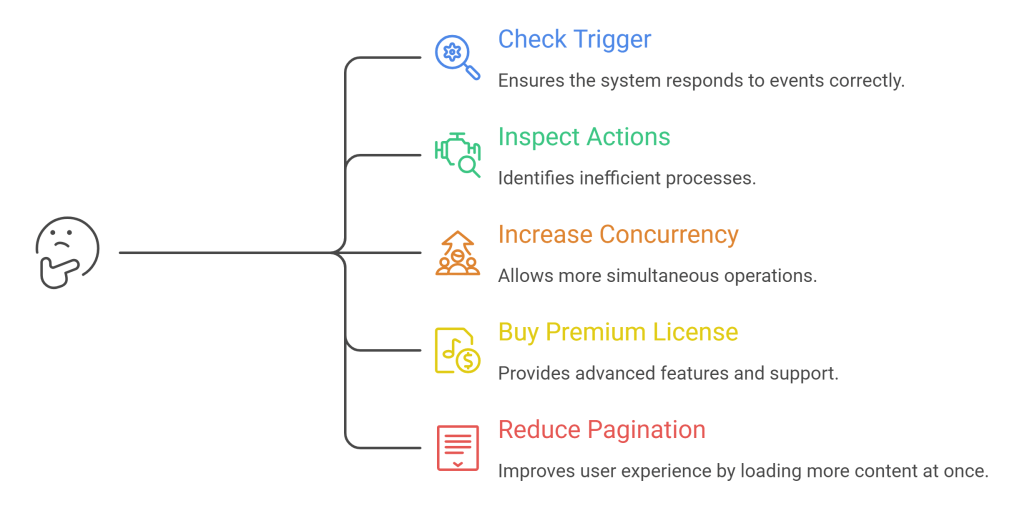
Sometimes one of those fixes works.
Most of the time…
We are fixing the wrong thing.
Because we don’t actually understand what happens after a flow is triggered.
Let’s follow one request from beginning to end.
The Story
Meet Sarah.
Sarah updates a Case in Dynamics 365.
Nothing unusual.
She changes the status from
In Progress
to
Resolved.
She clicks Save.
That single click begins a journey.
Stage 1 – Business Event
Sarah clicks Save

      ↓

Business Event
This isn’t a Power Automate request.
It isn’t even an API yet.
It’s simply a business event.
Examples
- Case updated
- Opportunity won
- Email received
- Contact created
Nothing has consumed any Power Platform Requests yet.
Stage 2 – Trigger
Business Event

      ↓

Dataverse Trigger

      ↓

Power Automate wakes up
Now Power Automate says
“Should I run?”
This is where trigger conditions matter.
Poor trigger design means unnecessary runs.
Better trigger.
Fewer runs.
Lower cost.
Stage 3 – Flow Runtime
Flow starts

     ↓

Runtime Engine
Now the workflow engine takes over.
Now something interesting happens.
Conditions.
Scopes.
Loops.
Compose.
Everything happens here.
Every executed action contributes towards your Power Platform Request allocation.
This is also where runtime limits begin to matter.
Stage 4 – Flow Owner
Power Automate asks
“Whose quota am I using?”
Not
Who triggered me?
Not
Which connection am I use?
Instead…
It depends on the trigger type.
Automated Flow Owner
Manual Flow Invoker
Process Licensed Flow License
This is one of the biggest misconceptions we will explore later in the series.
Stage 5 – Connection
The flow now needs data.
It uses a Dataverse connection.
Power Automate authenticates.
This identity is not necessarily the owner.
This could be
- Service Account
- Application User
- Personal Account
- Managed Identity
Different identity.
Different responsibility.
Stage 6 – Connector
Now the Dataverse connector receives the request.
Power Automate

      ↓

Dataverse Connector
The connector has its own rules.
Retries.
Timeouts.
Authentication.
Throttling.
This is another completely independent protection layer.
Stage 7 – Dataverse
Finally…
The request reaches Dataverse.
Dataverse now asks
Can I safely process this?
Not
Is the flow licensed?
HTTP 429
Instead
- Too many concurrent requests?
- Too much execution time?
- Too many requests in five minutes?
This is where Service Protection begins.
Stage 8 – Storage
If everything succeeds
Data is committed.
Tables update.
Audit logs grow.
Attachments consume storage.
Database capacity changes.
The request is finally complete.
The Entire Journey
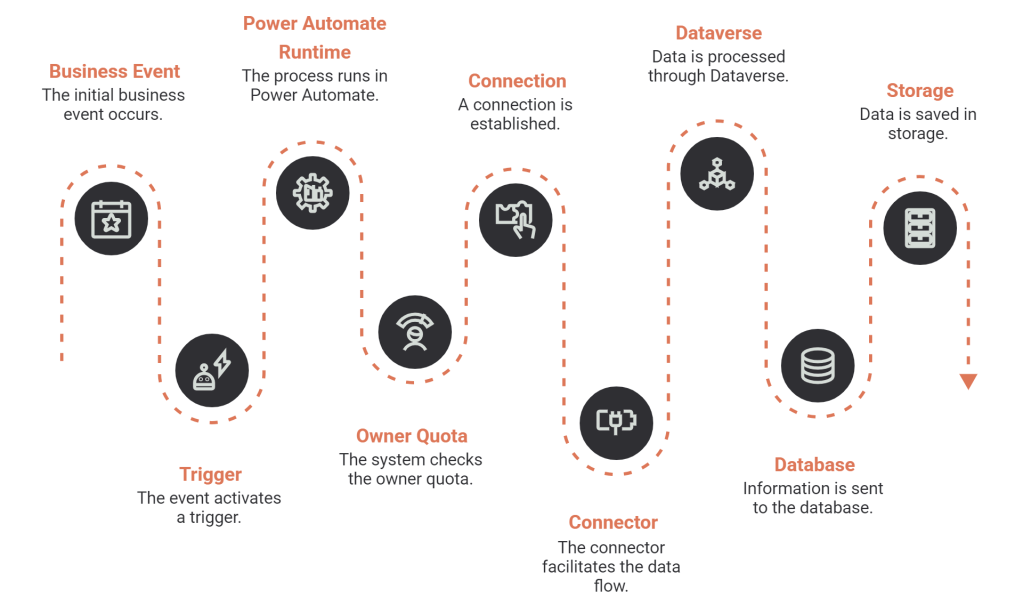
One user action. Eight different systems.
Each one capable of saying
“No.”
For completely different reasons.
Why This Matters
Imagine receiving
Where did it happen?
The runtime?
The connector?
Dataverse?
The answer completely changes the solution.
Understanding the journey helps you ask better questions before applying fixes.
Your Mindset
Instead of asking
“Where did the flow fail?”
Start asking
“Which system rejected the request?”
That small change in thinking separates debugging from architecture.
Key Takeaways
✔ Every Power Platform request follows a journey through multiple independent systems.
✔ Different systems enforce different limits at different stages.
✔ Understanding where the request is in its journey is the first step to diagnosing issues correctly.

